How boardingon.ai works
A quick tour of how boardingon.ai works: AI drafts an onboarding plan, you invite a hire, they work it day by day, and you track health and review proof.
This article walks you through how boardingon.ai works end to end, so you understand the whole picture before you set up your first hire.
The big picture
boardingon.ai replaces slow, sink-or-swim onboarding with a structured, guided path that gets a new hire effective and independent faster. That single goal — time-to-self-sufficiency — sits behind everything the platform does.
Your company gets its own branded space. Inside it there are three kinds of people: the owner who created the company, managers who set up and run onboarding, and the hires (members) who are getting up to speed. Access is set with granular permissions per person, so you decide exactly what each teammate can see and do — not just a blunt role.
The AI is the active ingredient throughout. It drafts each plan, flags gaps, and coaches the hire as they work. The whole thing runs as one simple loop, in four steps.
Step 1 — Build a role and let AI draft the plan
You start by creating a job role under Job roles in the left nav. Paste in what you already have — the job description, your SOPs, a few Loom links — and boardingon.ai's AI drafts a full onboarding plan for that role. It also flags gaps where context is thin, so you can fill them in before you publish.
You review the draft, adjust anything you want, and publish. For example, Riverside Plumbing's "Customer Support Rep" role has 7 steps and takes about two weeks to ramp.
Tip: The more real context you paste — actual SOPs and walkthrough videos, not just a title — the sharper the AI's first draft will be. It's easier to trim a rich plan than to build one from thin material.
Step 2 — Invite your hire
Once the plan is published, you invite a hire into that role. Their plan starts the moment they accept. In the demo company, Alex Rivera has been invited as a Customer Support Rep and is waiting to accept.
Step 3 — Your hire works the plan
After accepting, your hire lands on their My Onboarding page — their daily home base, shown below.
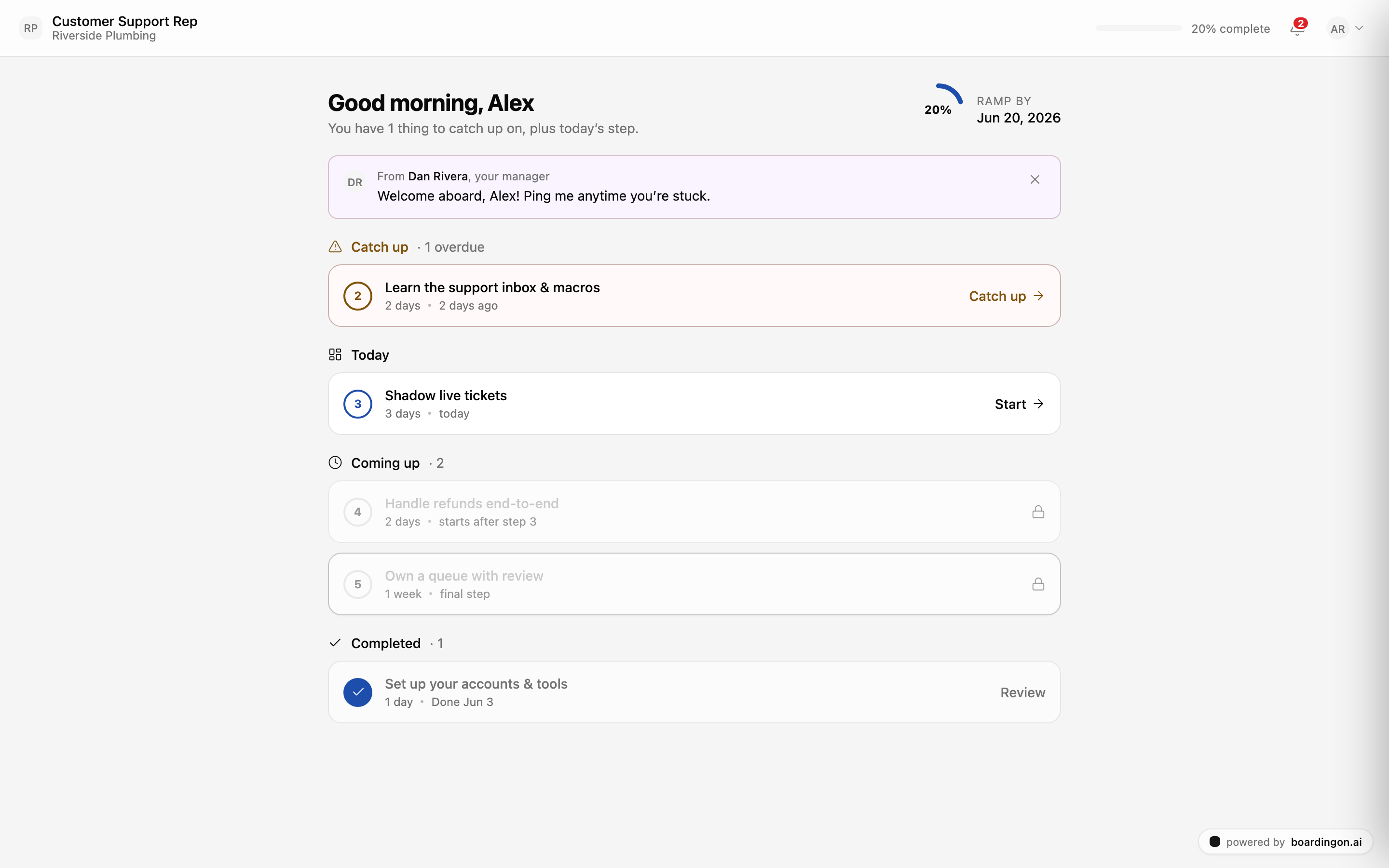
Their steps are grouped so they always know where to focus: what to catch up on, what's due today, and what's coming up. Each step can include a guide to read, a checklist to work through, and a file or link to submit as proof of the work. As they go, the AI coaches them along the way. Day by day, the plan pulls them toward being self-sufficient.
Step 4 — Track health and review proof
While your hires work, you keep the full view from the Dashboard. You'll land on the screen below.
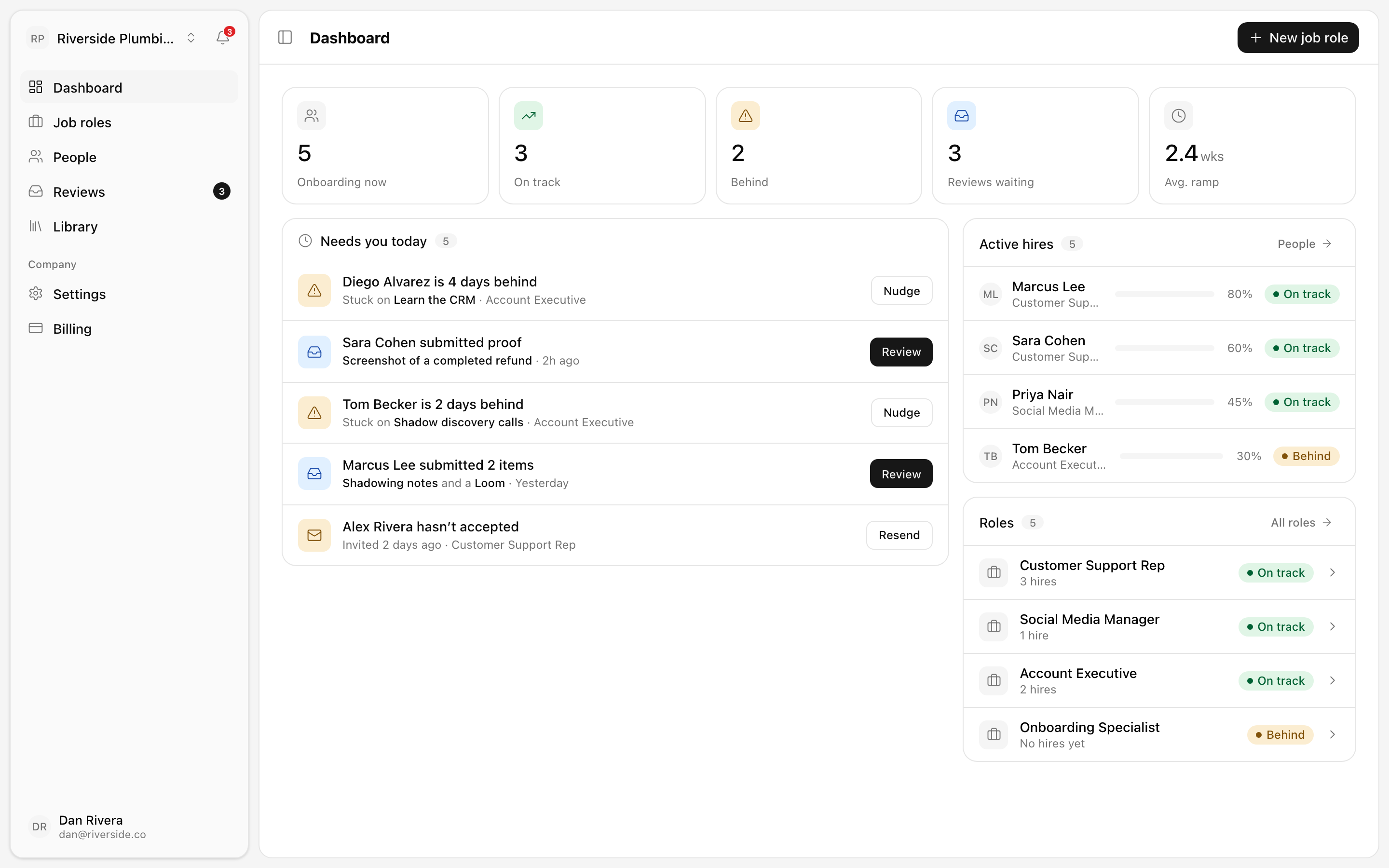
The Dashboard shows health tiles, a Needs you today list, and your active hires at a glance. The People roster gives you every hire with a health status — On track or Behind — so you can spot who needs a hand. In the demo, Marcus Lee is at 80% and on track, while Tom Becker and Diego Alvarez are flagged as behind.
When a hire submits proof for a step, it lands in your Reviews inbox. You either approve it or ask for a redo, sending the step back with a note. That closes the loop: you author, your hire works, you see their health and sign off on the proof.
Tip: Check Needs you today first each morning. It surfaces the hires and reviews that need your attention right now, so a few minutes keeps everyone moving.
What's next
Ready to set up your first role? Start here: Create your first onboarding plan.