Track progress & review proof
Track every hire's progress from the Dashboard and People roster, then approve the proof they submit — or request a redo — in the Reviews inbox.
Keep tabs on how every new hire is progressing, and approve the proof they submit to move each step forward.
Start at the Dashboard
The Dashboard is your home base. Open it from the left nav to see how onboarding is going across your company at a glance.
Across the top are health tiles: Onboarding now (how many hires are ramping right now), On track, Behind, Reviews waiting, and Avg. ramp — the average number of weeks it takes a hire to get up to speed.
Below the tiles, the Needs you today list triages exactly what to act on. Each item arrives with the action it needs:
- A hire who's fallen behind — like Tom Becker — with a Nudge button.
- Proof a hire submitted — with a Review button.
- An invite that hasn't been accepted yet — like Alex Rivera — with a Resend button.
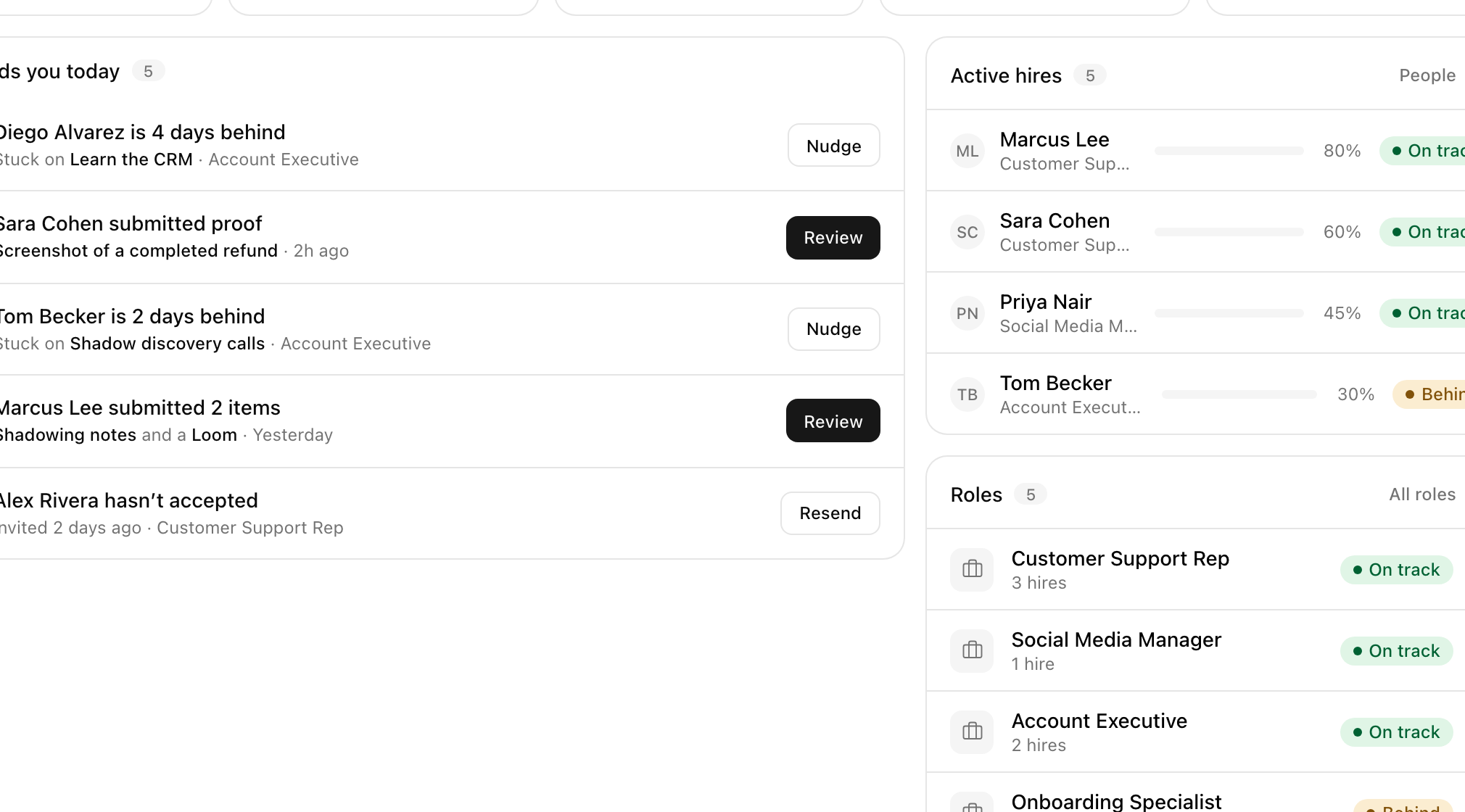
Further down you'll also find an Active hires list and a Roles list, so you can jump straight to a person or a role from here.
Tip: Start each day on the Dashboard. When "Needs you today" is empty, everyone's moving and nothing is waiting on you.
Check the People roster
When you want the full picture, open People in the left nav. Every hire sits in one table.
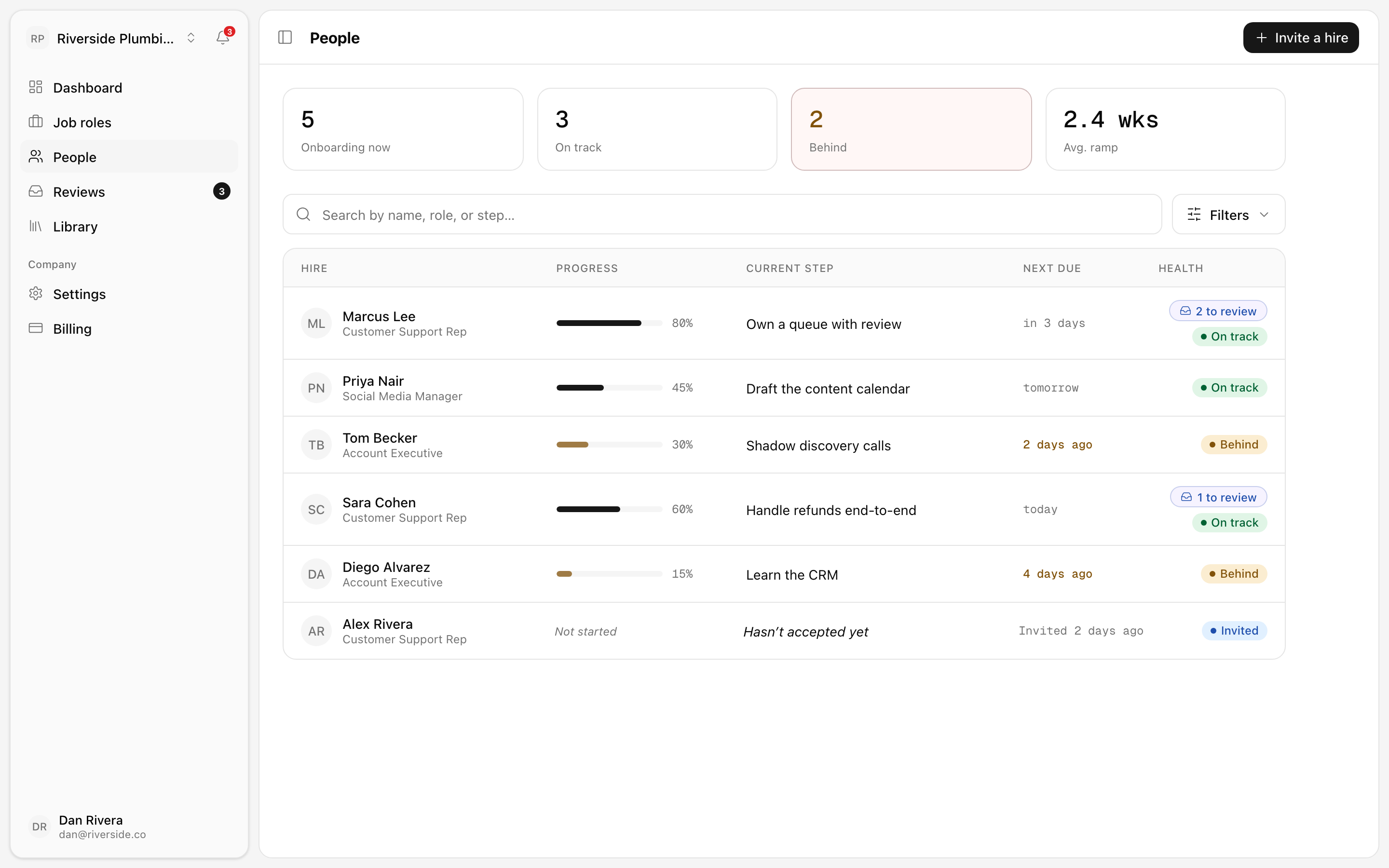
Each row shows:
- Hire — the person's name.
- Progress — a percentage bar of how far through their plan they are. Marcus Lee is at 80%, Sara Cohen at 60%, Priya Nair at 45%.
- Current step — what they're working on now.
- Next due — when their next step is due.
- Health — a badge reading On track, Behind, or Invited.
If a hire has submitted proof that's waiting on you, their row shows a "N to review" chip. Use the search box and filters to narrow the list as your roster grows.
Review the proof hires submit
To finish a step, a hire submits proof — and you approve it. Open Reviews in the left nav to see everything they've submitted in one place.
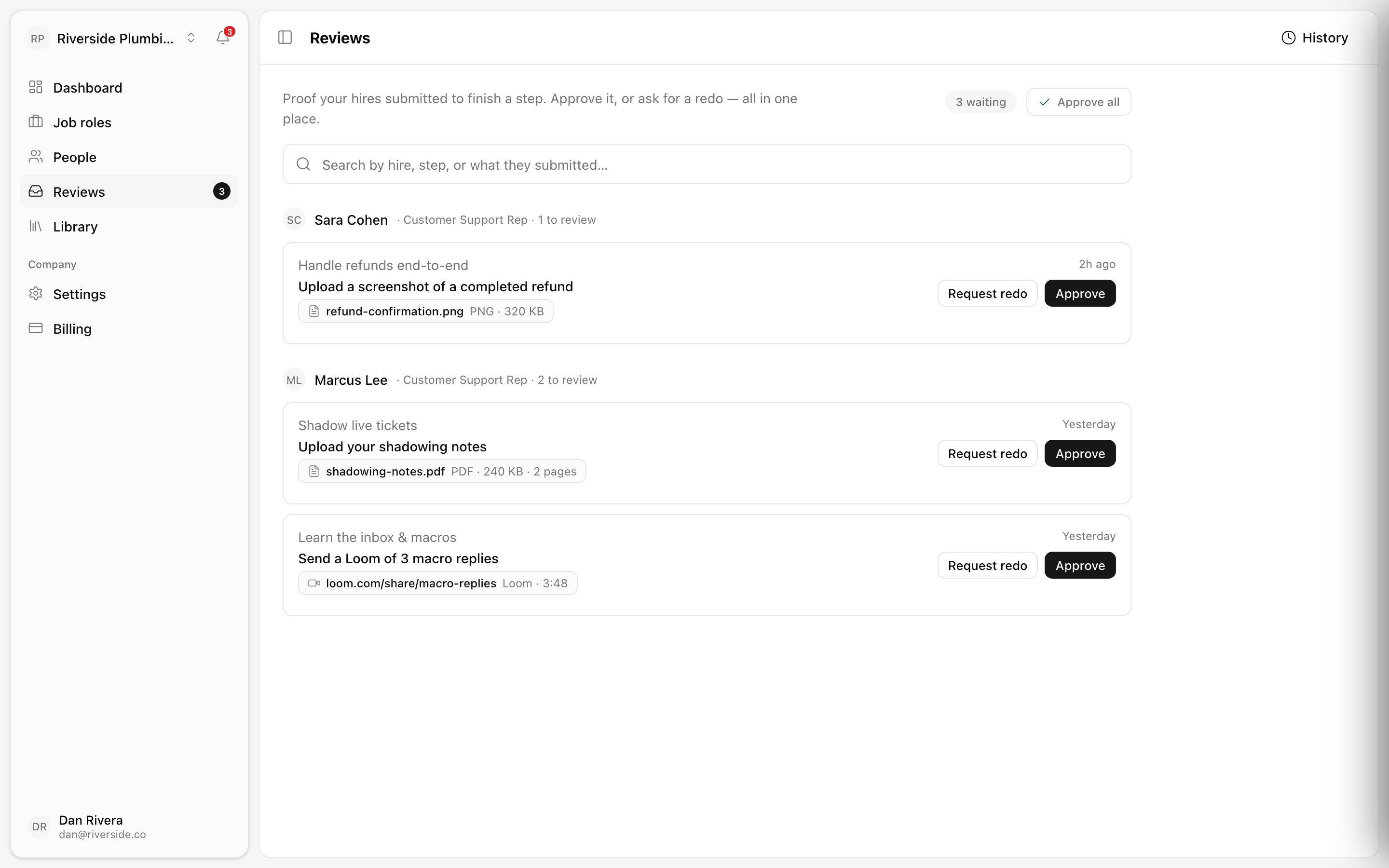
Each item shows the hire, the step it belongs to, and what they submitted: a file (like refund-confirmation.png), a PDF, or a Loom link. A running count tells you how many are waiting, and a History tab holds everything you've already handled.
Open an item to look at the proof up close.
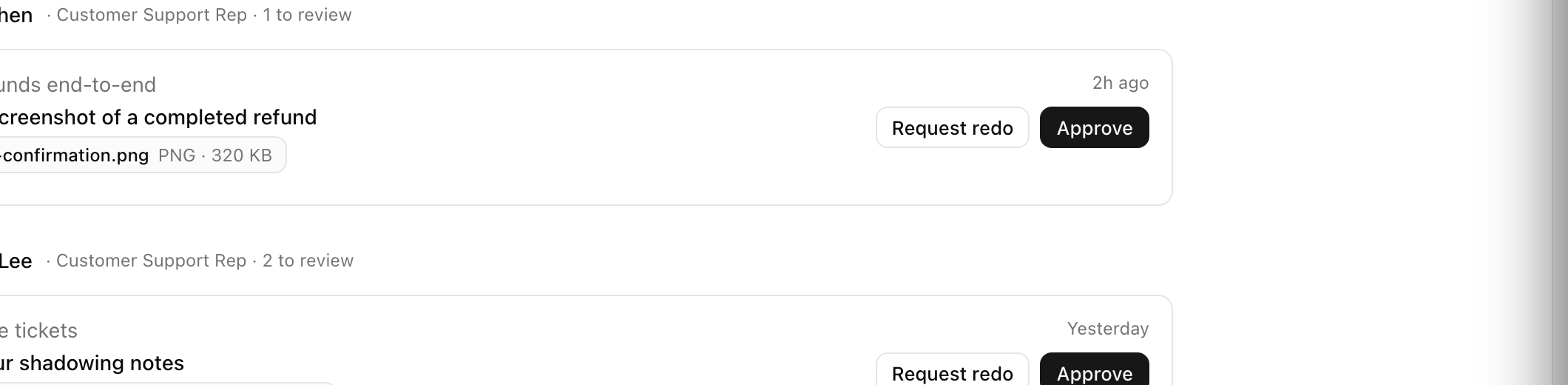
From here you have two choices:
- Approve — the step is done and the hire moves on.
- Request redo — this reopens that step for the hire so they can resubmit.
When you're confident in a batch, Approve all clears everything waiting at once. And any time a hire needs a pointer, you can send them a short message or nudge.
Tip: Requesting a redo isn't a red mark — it's coaching. A quick note on what to fix gets the hire to a confident, correct result faster.
What's next
Ready to bring someone new into a role? Read Invite a new hire.